

You're about to join a Microsoft Teams meeting and you don't have the app installed. Maybe you're on a borrowed laptop, on your phone, or you just don't want one more app on your machine. Here's how to do it in under a minute, plus how to handle the note-taking without a bot in the call.
Join a Teams meeting in your web browser
When the meeting invite shows up, the link wants to open the Teams app by default. To skip the app, right-click the link and copy it, then paste it into Chrome, Edge, Firefox, or Safari. Edge and Chrome are Microsoft's recommended browsers, but the others work fine for most meetings.
When the page loads, look for the option that says "Continue on this browser" or "Join on the web instead". Click it. The page will ask for microphone and camera permissions. Allow them if you want to participate, deny if you'd rather lurk. Sort out your audio and video settings, then click "Join now". You're in.
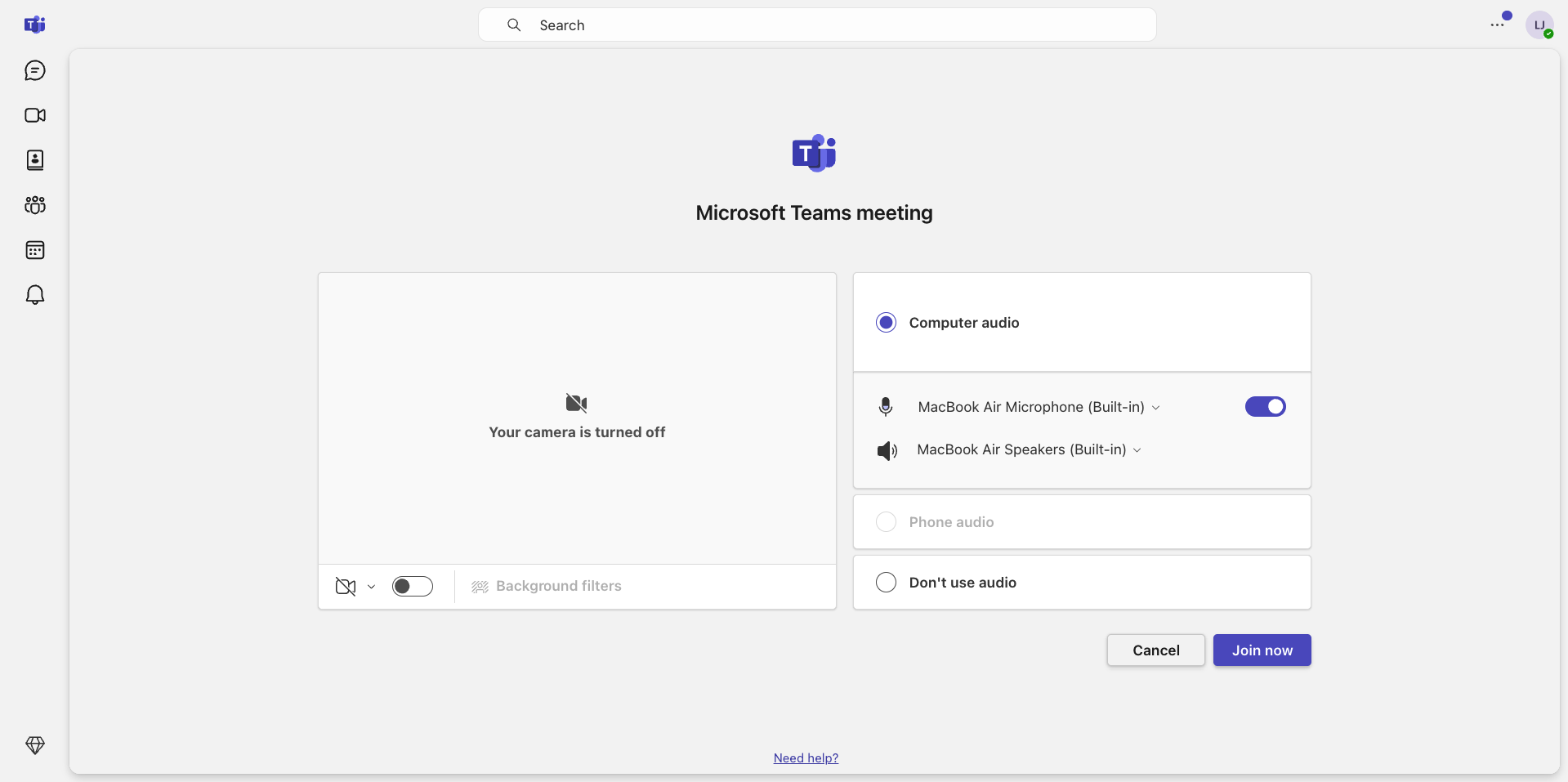
You don't need a Microsoft account to join as a guest. The only thing you'll need to enter is your name, so make it a recognizable one.
Pro tip: bookmark teams.microsoft.com as your default Teams entry point. Faster than digging through emails for the meeting link every time.
Join a Teams meeting from your phone or tablet
Mobile is trickier. Teams for Web is not officially supported on iOS or Android, so when you tap a meeting link on your phone you'll usually see something like this:
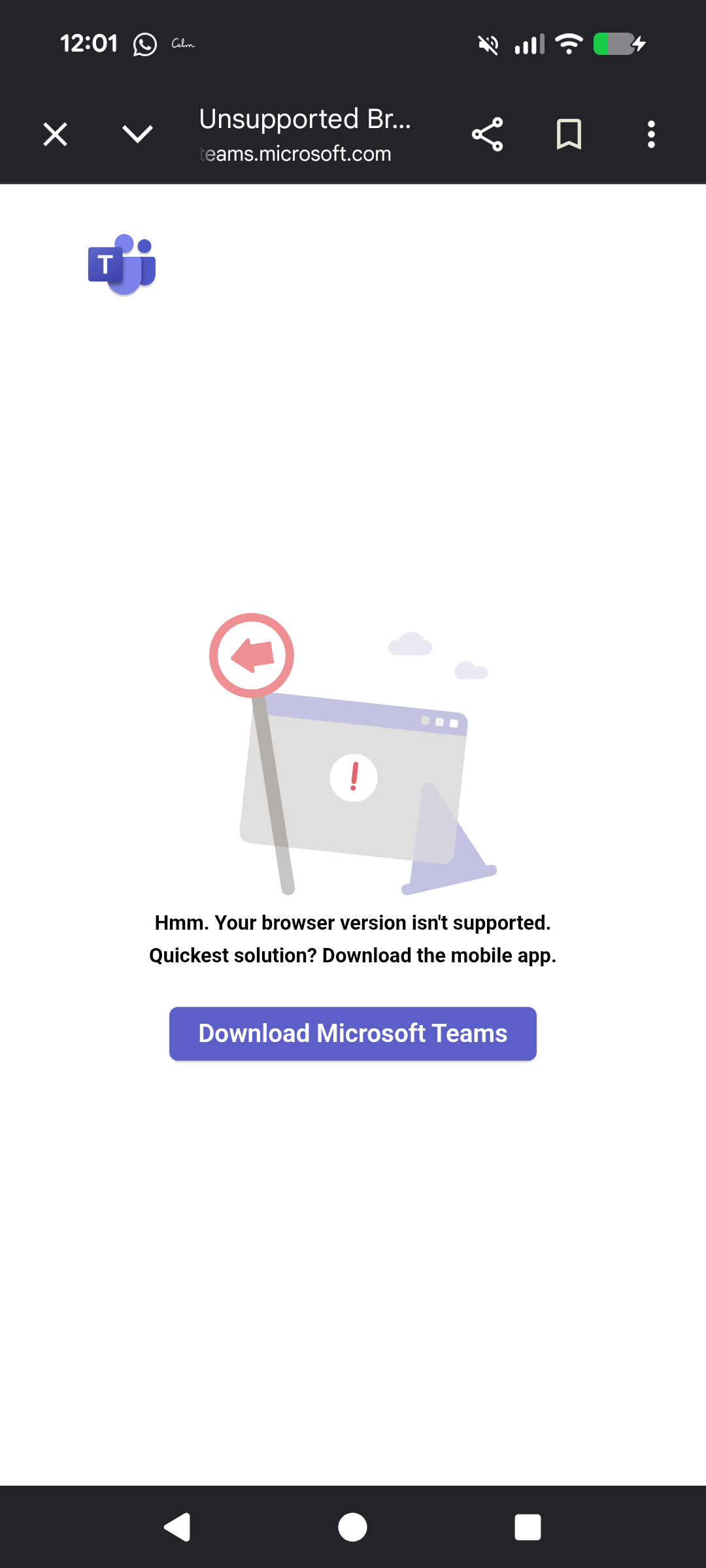
The big purple Download Microsoft Teams button is Teams's preferred answer. But if you really don't want the app, switch your browser to "Request Desktop Site" mode:
Safari (iOS): tap the AA icon in the address bar, then "Request Desktop Website"
Chrome (iOS or Android): tap the three-dot menu, then "Desktop site"
Reload the page. The web app usually loads after that. Allow mic and camera access when prompted, and expect video quality to drop on slower connections.
Honest take: the Teams mobile app is more reliable for mobile meetings. You can delete it after the call if you don't want it cluttering your phone.
If neither method works, dial in
Most Teams meeting invites include a phone number and conference ID for audio dial-in. Scroll to the bottom of the invite. You'll miss the visuals (slides, screen shares, faces), but you'll be on the call.
What you can still do without the app
The browser version of Teams covers most of what you'll need in a meeting:
Screen sharing: share your entire screen or a specific window. Close anything sensitive first
Chat: the meeting chat panel works the same as in the app
Background effects: blur or a limited set of background images
Breakout rooms: you're moved automatically when the organizer creates them, and you can return to the main room manually
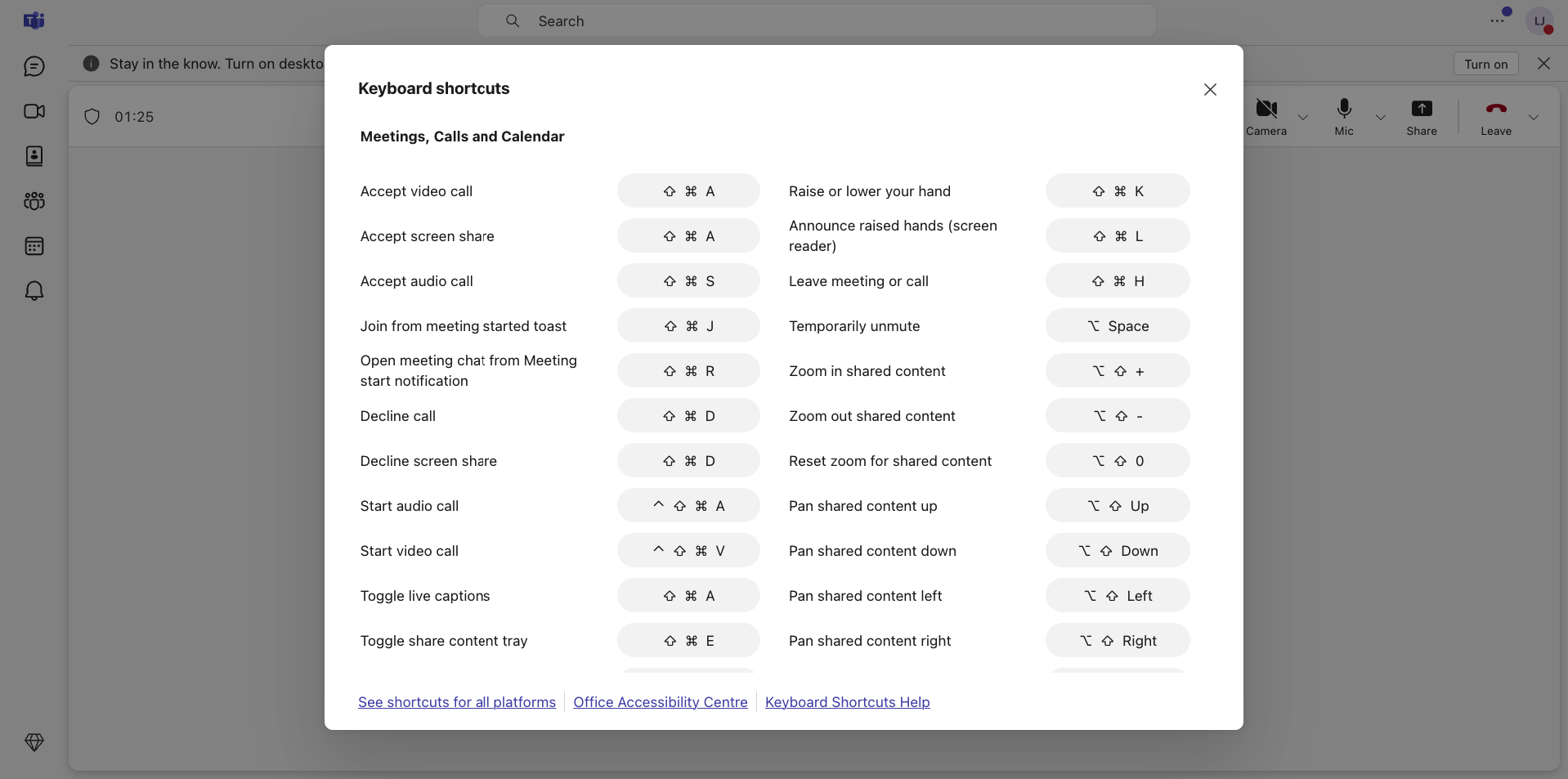
Keyboard shortcuts: Ctrl + Shift + M (Cmd + Shift + M on Mac) to mute, Ctrl + Shift + O for camera, Ctrl + Shift + K to raise your hand
📋 What's not available in the browser
A few features only work in the desktop app: whiteboard, full file collaboration, and the highest video quality settings. Live captioning is also more limited in some browsers. If you rely on any of those, the app is the better choice.
Take Teams meeting notes without a bot
Joining without the app solves the install problem. It doesn't solve the note-taking problem. You still need someone or something to capture what was said, pull out the action items, and turn the conversation into the work that comes after.
The Supernormal meeting notetaker takes meeting notes directly from your computer without a bot joining the call. After the meeting, AI agents turn that context into the work you'd otherwise spend hours writing yourself: follow-up emails, slides, briefs, project plans, and docs. In a flash.
It works whether you joined Teams in the browser, on mobile, or in the app. No bot in the meeting, no awkward "Supernormal has joined the call" announcement, no manual write-up afterwards.
If you take notes from a lot of meetings, especially client calls with external attendees, the bot-versus-no-bot trade-off is worth a quick read before you settle on a tool. The AI meeting notes guide walks through the setup in more detail.
And that's how you join a Teams meeting without the app, take useful notes from it, and get on with the rest of your day.